

 Monday 01 June 2026
 Ferhunde
Counter-Strike 2 New Updates: What Awaits Players? Valve’s popular competitive FPS game Counter-Strike 2 continues to improve the player experience w...
See more
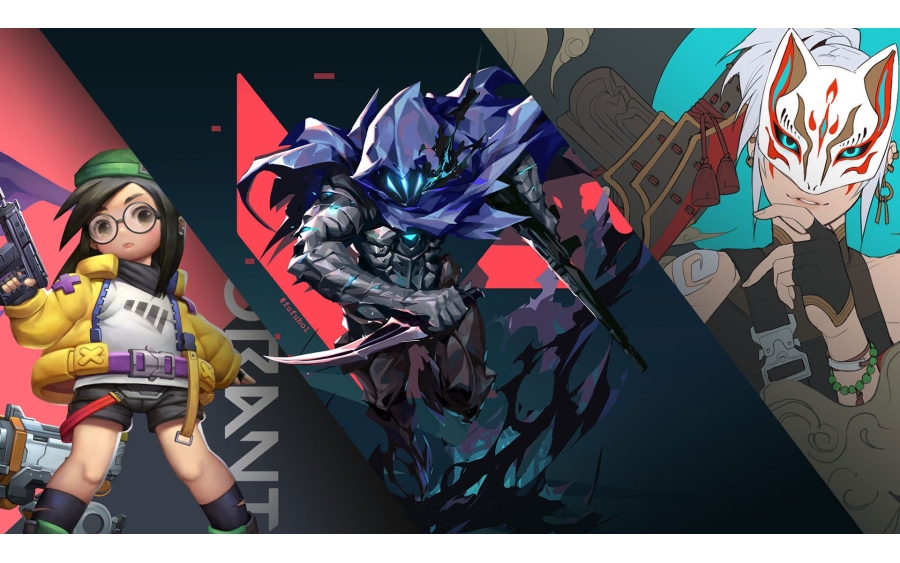
The VAN 84 error in Valorant is one of the most common connection-related issues that can prevent players from logging into the game or connecting to Riot servers. This error is usually caused by temporary Riot Games server issues, internet connectivity problems, or malfunctions with the Riot Vanguard anti-cheat service.
In this guide, we'll explain what the Valorant VAN 84 error is, why it occurs, and the most effective methods to fix it.
The VAN 84 error indicates that the Valorant client is unable to establish a stable connection with Riot Games servers. When this error occurs, players may be disconnected from the game or encounter connection issues while trying to log in.
Although the problem is often caused by Riot's servers, it can sometimes be related to local network or system settings.
Some of the most common reasons behind the VAN 84 error include:
Before troubleshooting your system, verify whether Riot Games servers are experiencing maintenance or outages. If the issue is server-side, you'll need to wait until Riot resolves it.
This simple solution often fixes temporary connection issues.
Steps:
Temporary issues with background services can trigger the VAN 84 error. Restarting your PC may resolve these conflicts and restore normal connectivity.
Network interruptions can sometimes cause the VAN 84 error.
Steps:
If Riot Vanguard is not running properly, Valorant may fail to connect to Riot servers.
Steps:
Switching to Google DNS may help resolve connection issues.
Preferred DNS: 8.8.8.8
Alternate DNS: 8.8.4.4
After changing your DNS settings, restart your computer for the changes to take effect.
Once completed, restart your PC.
Some security software may block Valorant or Riot Vanguard connections.
If none of the above solutions work, perform a clean reinstall.
Steps:
While the VAN 84 error cannot always be avoided, the following practices can reduce the likelihood of encountering it:
The Valorant VAN 84 error is typically caused by temporary server-side connectivity issues, but checking your internet connection, restarting Riot Vanguard, and resetting your network settings can resolve the problem in many cases. If you've tried all of the solutions above and the error still persists, contacting Riot Games Support is recommended for further assistance.
Counter-Strike 2 New Updates: What Awaits Players? Valve’s popular competitive FPS game Counter-Strike 2 continues to improve the player experience w...
See more

Pro Cycling Manager 2026 aims to deliver the most complete cycling management experience yet, putting players in charge of every aspect of a professio...
See more