

 Tuesday 04 August 2026
 Ferhunde
MARVEL Tōkon: Fighting Souls brings iconic Marvel heroes and villains into a fast-paced, visually striking fighting experience built around 4v4 team b...
See more
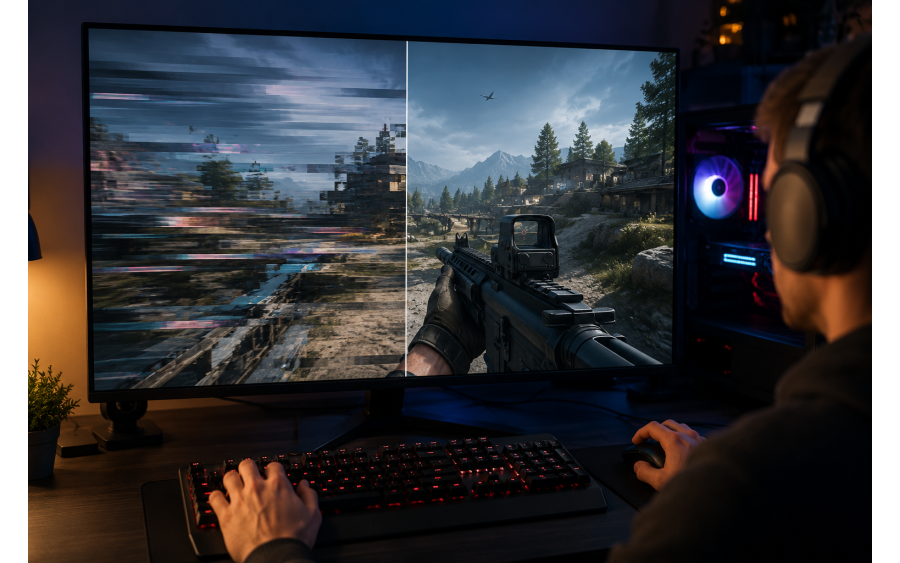
Stuttering is one of the most common performance issues gamers encounter while playing PC games. Even if a game appears to be running at a high frame rate (FPS), brief freezes or micro-stutters can significantly impact the overall gaming experience. In competitive games, these interruptions can increase reaction time and reduce performance.
So, what causes stuttering in games? What are the most common reasons behind it, and how can you fix it? Here's our comprehensive guide.
Stuttering refers to brief moments where a game slows down or freezes, even though it generally runs smoothly. Unlike consistently low FPS, stuttering happens intermittently and is often more noticeable.
For example:
Your average FPS may be 120.
However, the game may freeze for a fraction of a second every few seconds.
These interruptions make gameplay feel choppy and less responsive.
That's why looking at FPS alone isn't enough. Frame Time consistency is just as important for a smooth gaming experience.
Some games rely more heavily on the processor than the graphics card.
This is especially true for:
Open-world games
Strategy games
Multiplayer battle games
Simulation games
If your CPU is under heavy load, the GPU may have to wait for new data, resulting in stuttering.
Close unnecessary background applications.
Monitor CPU temperatures.
Switch to the High Performance power plan.
Upgrade your processor if necessary.
Modern games use high-resolution textures that consume a significant amount of VRAM.
When VRAM becomes full, the system starts using regular RAM instead, which can cause short pauses and stuttering.
This commonly happens when using:
Ultra texture settings
Ray Tracing
4K resolution
Lower texture quality.
Disable Ray Tracing.
Reduce the rendering resolution.
Use upscaling technologies such as DLSS, FSR, or XeSS.
If your computer doesn't have enough RAM, it must constantly read and write data to storage, which can create performance issues.
Common symptoms include:
Sudden FPS drops
Longer loading times
Micro-stuttering
For most modern AAA games:
16 GB RAM is considered the minimum recommendation.
32 GB RAM provides a much smoother experience.
Traditional hard disk drives (HDDs) are significantly slower than SSDs.
In open-world games, slow storage can prevent assets from loading quickly enough, leading to:
Brief freezes
Late-loading textures
Audio delays
Whenever possible, install your games on an SSD or NVMe SSD.
Graphics card manufacturers frequently release driver updates to optimize performance for newly released games.
Outdated drivers can lead to:
Lower performance
Shader-related issues
Stuttering
Keep your graphics drivers up to date. If problems persist after an update, try performing a clean driver installation.
Shader compilation has become one of the biggest causes of stuttering in modern PC games.
When launching a game for the first time, shaders are compiled in the background.
During this process, you may experience:
Sudden FPS drops
Micro-stuttering
Camera movement freezes
Allow shader compilation to finish before playing.
Be patient during the first launch.
Only clear the shader cache if recommended by the game developer or your GPU manufacturer.
Some applications consume CPU, RAM, or storage resources while you're gaming.
Examples include:
Antivirus scans
Cloud synchronization software
Web browsers
Screen recording software
Automatic update services
These can all contribute to stuttering.
Close unnecessary programs before launching a game and review which applications start automatically with Windows.
When your CPU or GPU reaches high temperatures, it automatically lowers its operating frequency to prevent overheating.
This can cause:
FPS drops
Micro-stuttering
Inconsistent performance
Clean dust from your PC.
Ensure all cooling fans are functioning properly.
Replace thermal paste when necessary.
Improve your case's airflow.
Incorrect V-Sync settings can sometimes introduce input lag and inconsistent frame pacing.
Alternatives such as:
G-SYNC
FreeSync
FPS limiting
often provide smoother gameplay.
Setting an FPS cap that matches your monitor's refresh rate can also improve frame-time consistency.
Not every performance issue is caused by your hardware.
Some newly released games may suffer from:
Memory leaks
Poor shader optimization
High CPU usage
DirectX or graphics API issues
In these cases, developers often resolve the problem through patches and updates.
The following recommendations can help minimize micro-stuttering in many games:
Install games on an SSD or NVMe SSD.
Keep your graphics drivers up to date.
Close unnecessary background applications.
Adjust graphics settings to match your hardware.
Regularly install operating system and game updates.
Monitor CPU and GPU temperatures.
Keep an eye on RAM and VRAM usage.
Enable G-SYNC or FreeSync if your monitor supports it.
Game stuttering rarely has a single cause. Your CPU, GPU, RAM, storage device, drivers, system temperatures, and the game's overall optimization can all contribute to the issue. Identifying the root cause helps you avoid unnecessary hardware upgrades while achieving a smoother and more enjoyable gaming experience.
By maintaining your system, keeping drivers updated, and optimizing your game settings for your hardware, you can significantly reduce stuttering. Whether you're enjoying a story-driven single-player adventure or competing in fast-paced online multiplayer matches, these optimizations will help deliver a more stable and responsive gaming experience.
MARVEL Tōkon: Fighting Souls brings iconic Marvel heroes and villains into a fast-paced, visually striking fighting experience built around 4v4 team b...
See more
How Will Quantum Computing Affect Video Games? The Future of the Gaming World One of the most remarkable developments in the technology world in rece...
See more
